
Make BLACKBOOK yours.
New to BLACKBOOK? Here's the illustrated walkthrough for opening the app, adding its icon to a phone or laptop, choosing your five shortcuts, and turning on your live timezone clock. The screenshots below are from the actual BLACKBOOK app.
Add the BLACKBOOK icon to your device
BLACKBOOK also works immediately in your browser. Install it only if you want a one-click icon and a more app-like window.
📱 Android phone · Chrome
- Open the BLACKBOOK welcome page in Chrome.
- Tap the three-dot menu (⋮) at the top right.
- Choose Install app or Add to Home screen, depending on your browser.
- Confirm the installation. Look for the BLACKBOOK icon on your phone.
- Tap the icon to open your personal workspace.
🍎 iPhone / iPad · Safari
- Open BLACKBOOK in Safari.
- Tap the Share button (square with an arrow).
- Choose Add to Home Screen. On some versions, you may find this under More.
- Tap Add. BLACKBOOK appears with its own icon.
- Open it directly from your Home Screen.
💻 Windows laptop · Chrome or Edge
- Open BLACKBOOK in Chrome or Edge.
- Look for the Install icon in the address bar, or open the browser's ⋮ menu.
- In Chrome choose Cast, save and share → Install page as app (or the Install option shown). In Edge choose Apps → Install this site as an app.
- Confirm, then pin BLACKBOOK to your Taskbar or Start menu if offered.
🍏 Mac laptop · Safari or Chrome
- Open BLACKBOOK in Safari or Chrome.
- In Safari on supported macOS versions, choose File → Add to Dock.
- In Chrome, choose the available Install action from its menu or address bar.
- Launch BLACKBOOK using its Dock or app icon.
Browser menus may differ slightly depending on your operating system and browser version. App installation requires supported browser functionality and a secure HTTPS connection.
Your five shortcuts—your way
On first use, the five home slots are empty. Choose what appears here: dispatch, WhatsApp, Google Maps, SOPs, social media, or your own approved website shortcuts.
The sample screenshot shows someone who has already chosen three tools; your own five slots start empty. Choices are stored on your current device.
Choose my five shortcuts ↗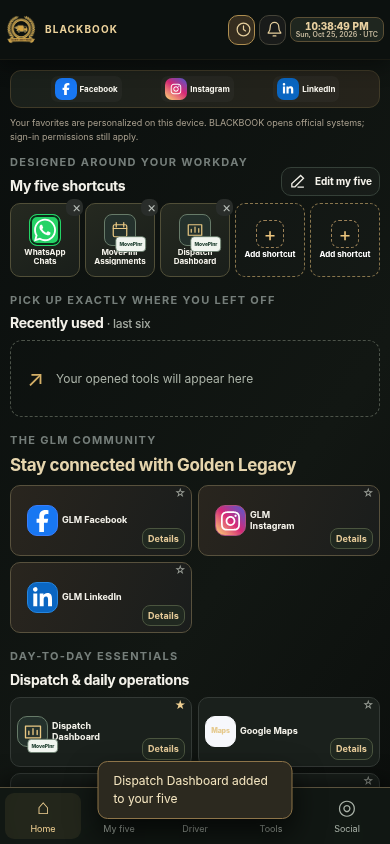
Keep the right time on screen
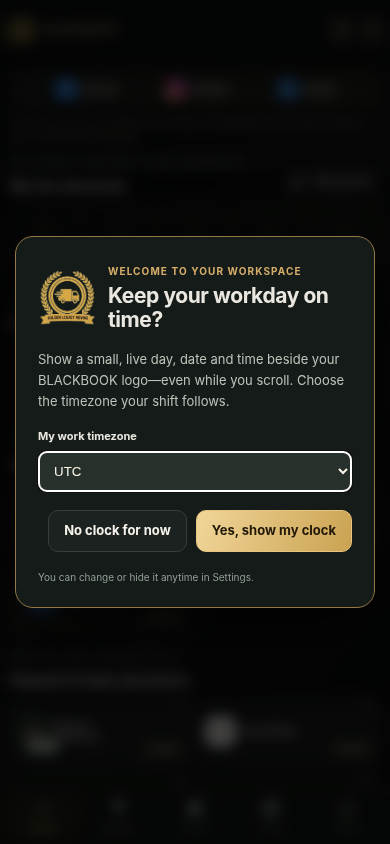
BLACKBOOK asks once whether you want a small, running clock. Choose your work timezone—including Philippines or US Pacific—and the clock stays in the top bar while you scroll.
- When BLACKBOOK first opens, choose Yes, show my clock or No clock for now.
- Choose your work timezone from the list.
- To change it later, open My settings → Live workday clock.
- Switch it off anytime to leave more space for tools.
Find tools faster the next time
BLACKBOOK automatically shows the last six tools you opened through BLACKBOOK. They appear in Recently used, so you can return without searching.
- Use your shortcuts or open a tool from the directory.
- Return to BLACKBOOK and find it in Recently used.
- Use the Details button on a tool card to expand extra information, especially on phones.
- Use the fixed top bar to access your clock, notifications or refresh.
- Find Facebook, Instagram and LinkedIn near the top of your home screen.
BLACKBOOK shortcuts open the official systems; you still need permission and login access to MovePlnr, Porwork, QuickBooks, Motive and other services. Recently used history and favorites do not sync across devices.
Open my workspace ↗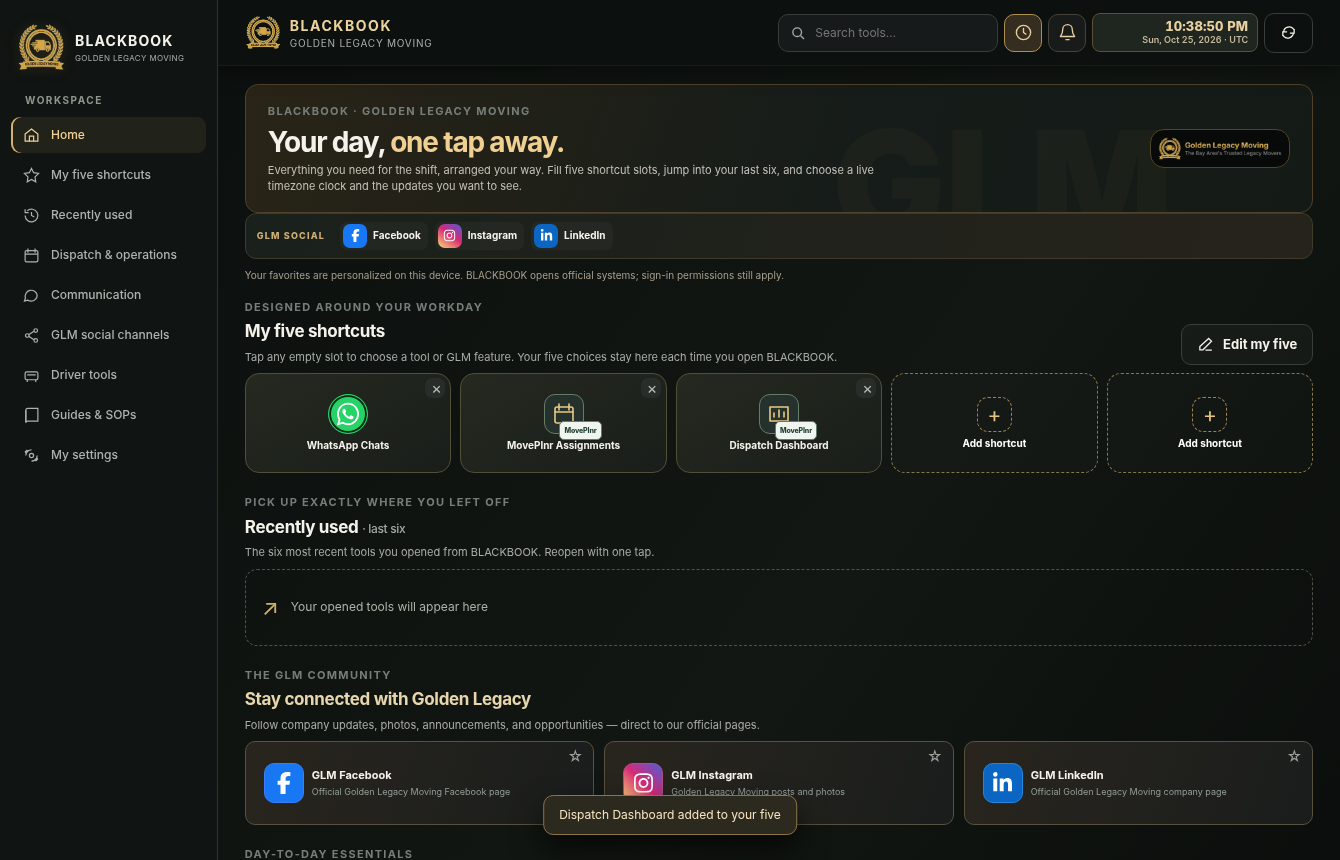
Need help?
I'm already installed. Why do I see a website?
Use the installed BLACKBOOK icon rather than a browser bookmark. A normal browser tab will look like a website, while the supported installed app runs in a separate app window.
Why aren't my tools appearing?
Open the five-slot picker and select your shortcuts. Make sure you are using the same browser and device. If you change devices or clear the browser's local storage, you may need to set them up again.