
EMPLOYEE GUIDE · VISUAL WALKTHROUGHS
Get comfortable with BLACKBOOK.
Everything you need to install, personalize and navigate BLACKBOOK—using actual app screenshots, clear instructions, and clickable links.
Install or open BLACKBOOK
Use the button at the top of the welcome page. If a browser offers a native install prompt, confirm it. Otherwise follow your device steps below. When installed, the app opens straight to the workspace; you do not need to read setup instructions again.
Android · Chrome
- Open the BLACKBOOK welcome page in Chrome.
- Tap the three-dot menu.
- Choose Install app or Add to Home screen.
- Confirm, then tap the BLACKBOOK icon.
iPhone · Safari
- Open BLACKBOOK in Safari.
- Tap Share.
- Select Add to Home Screen.
- Tap Add and open its icon.
Windows · Chrome / Edge
- Open BLACKBOOK.
- Look for the install icon near the address bar, or use the browser menu.
- Choose Install BLACKBOOK or Apps → Install this site.
- Open the new app shortcut.
Mac · Safari / Chrome
- Open BLACKBOOK.
- Use Safari File → Add to Dock when offered, or Chrome's install option.
- Confirm and launch from the Dock or Applications.
Install-menu placement varies with browser and OS version. If the option doesn't appear, use BLACKBOOK directly in a browser.
Choose your five favorite tools
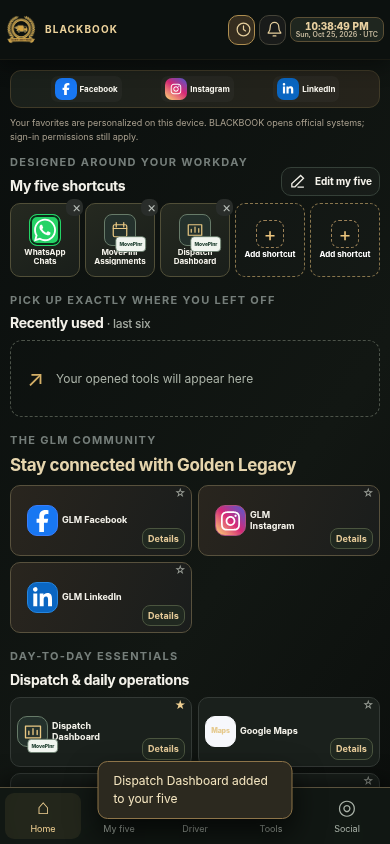
The five slots are yours. You can configure them manually or choose a ready-made layout.
- Open your workspace.
- Tap Driver, Dispatch, or Office / Admin to fill the slots, or leave them empty.
- Tap a slot to search and pick another tool.
- Shortcuts are stored on this device; they don't change your work permissions.
Keep work time in view
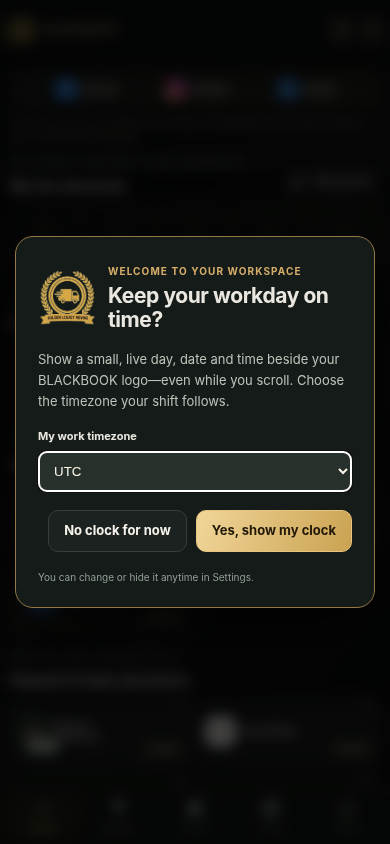
- Open BLACKBOOK and choose whether to display your clock.
- Select your timezone: Manila, Pacific, Eastern, Central or UTC.
- Click Save. The small clock remains visible in the fixed header while you scroll.
- To change your selection later, tap the clock icon at the top.
Reopen recently used tools
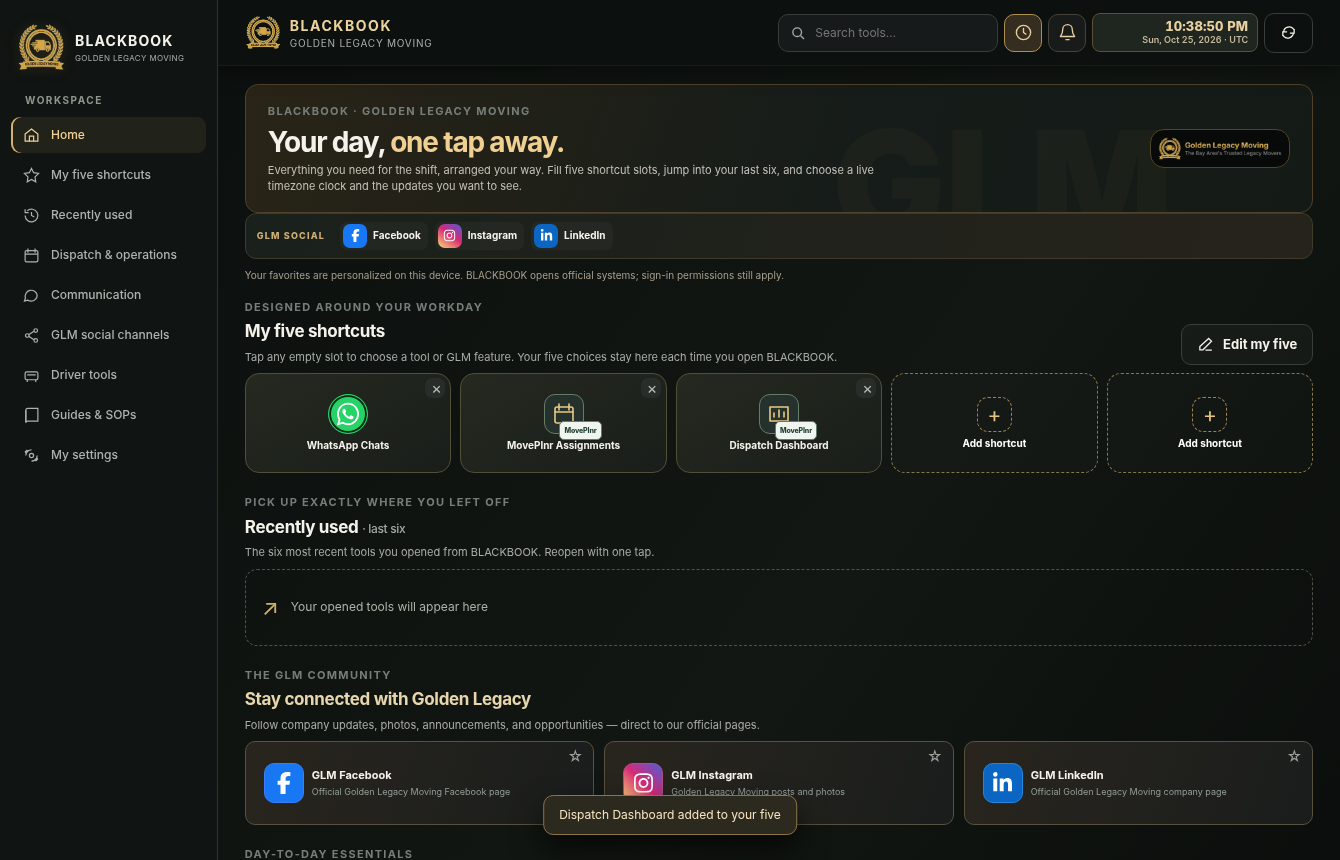
Whenever you open a tool through BLACKBOOK, it is added to your local Recently Used list. The most recent six appear on your workspace. Click any to reopen the service. You can clear the list whenever you like.
 Return to my workspace →
Choose MovePlnr notifications today
- Open your MovePlnr notification preferences.
- Use your own MovePlnr account to enable relevant chat mentions and assignment notices.
- Allow phone notifications in the browser or app if supported.
- BLACKBOOK-branded push alerts are not yet connected. They require a secure employee identity and supported event connection.